Friday, 13 January 2017

Installing Veritas Backup Exec 16 on Windows Server 2012 R2.

Or, Step by step installation guide for Veritas Backup Exec 16.
Or, Veritas Backup Exec 16 installation Steps..

Descriptions: First things first, please make sure you have fully patched windows server 2012 R2 and .Net 3.5 installed already before proceeding with installation of Veritas Backup Exec 16. Its required for properly functioning of windows server as well for smooth error free installation of veritas backup exec 16 on windows server 20112 R2. Internet connectivity is also required if in case SQL Express installation needs it while installing Veritas Backup Exec 16 on the windows server.
Rest of the process of installing Veritas Backup Exec is just simple as Next, Next, and Finish.. J Thanks to Veritas for making it so simple and less time consuming….

Steps: Installing Veritas Backup Exec 16

Right Click on the ISO image you downloaded for Veritas Backup Exec > Click on Mount


Browse CD-ROM > Right Click on Browser > Click on Run as administrator > Click Yes/OK if prompted


Click OK


Click on Backup Exec


Wait for Processing to be completed


Choose I accept the terms of the license agreement > Click Next


Choose Typical Installation > Click Next


Click Next


If you have licenses handy, give the details here and Click Next or You can Click Next without entering the license key for Trial Installation. (In my case I am using Trial Installation).


Say OK > Click Next


Fill out the required fields and Click Next


Click Next


Click Install


Wait for installation to be completed and Click Finish once done. You can now open the Backup Exec Console and start deploying agents for backup.

Cheers, please write me back if you have any query or feedback on this...

How to delete windows users profile from registry?

Or, Deleting users profile from registry settings.
Or, Users Profiles registry path/location.
Or, Deleting temp profiles from registry.

Descriptions: This very common issue with windows user’s profiles that, sometime even if you delete them from C:\ drive, they still exist in registry entries. This also leads to temp profile creation of the affected users at every logon.  In many cases, temp profile becomes show stopper... It may not let you browse things properly, may encounter error while or after document savings etc...

In this kind of situation, most of the tech guys, delete user’s profiles from windows. Deleting temp profiles are required to be done at least at two level to make sure it is completely removed.

1. C:\ Drive’s Users Profiles folder and
2. Registry

Paths References:

C:\ Drive: “C:\Users


Registry:  “HKLM\SOFTWARE\Microsoft\Windows NT\CurrentVersion\ProfileList”


Steps: Deleting Users profiles from Windows C:\ Drive

Go to path “C:\Users” > Delete the User Profiles you want (in my case Techies_Sphere).


Steps: Deleting User Profile from Registry

Go to Run > Type Regedit > Press Enter > Navigate to registry path: “HKLM\SOFTWARE\Microsoft\Windows NT\CurrentVersion\ProfileList”  > Check the keys entries one by one and looks for your user name > I found the techies_Sphere as shown in below screenshot > Delete complete Key folder(s-1-s-21-xxxxxx-xxxx-xxxxx) associated with your problematic user.


That’s it. You are done.

Cheers, if you have any query or feedback on this, please write me back...

Thursday, 12 January 2017

Understanding and performing P2V or V2V Conversion in VMware?

Or, How to convert a Physical Machine to a Virtual Machine?
Or, How to do V2V or P2V migration of a Virtual Machine?

Descriptions: One of the best loving feature of VMware is, converting Physical Machine to a Virtual Machine or Converting Virtual Machine to Virtual Machine (V2V migration required rarely in some tricky situation). I mentioned it here because, you should not be surprised when someone asks “Can you do V2V conversion?” ….

Scenario-1: (P2V): It is required when you are going to convert your physical server in to a Virtual Machine due to business requirements (may be you don’t have much memory available on the physical box and want to allocate more memory capacity to the server to full fill the application’s demand for better performance, etc…). In this situation you simply convert your physical machine to a Virtual Machine and add resources as much as you can (subjected to maximum supported capacity by the OS and availability of resources on the ESXi host). No need to worry of a long procurement process of additional hardware capacity… 

Scenario-2: (V2V): Guys this is something you are going to says, hmmmm…. See, decreasing Drive Capacity of a Virtual Machine is not supported by VMware. Means, if you have allocated 500GB disk space to a VM’s drive D:\, you can’t decrease it to 200GB latter... Off course, if you want to increase the drive’s capacity from 500GB to 600GB, its 4-5 clicks of job...

This is where the V2V trick works like charm. Yes, by using V2V conversion method you can decrease the Drive capacity of a Virtual Machine. It’s easy but needs downtime.
All the steps for performing V2V will be almost same like P2V. Here in V2V, you need to select the Powered On Virtual Machine option instead of Local Machine.

See Also:

Steps: P2V conversion in VMware

Install VMware vCenter Converter Standalone Client on your Physical Machine which to be converted to a Virtual Machine.

Open Console of VMware vCenter Converter Standalone Client.


Go to File > New > Convert Machine


Select Source Type: Powered-on Machine > Check on This Local Machine (means your local physical machine to be converted to a VM) > Click Next


Now as shown in below screenshot, select Destination Type: VMware Infrastructure Virtual Machine > Fill required credentials and IP of your ESXi Host Server > Server- ESXi server IP > User Name- ESXi Server User Name (root) > Password- ESXi server root password > Click Next...


Click on Ignore to ignore certificate warning message > Click Next


Verify if the Source and Destination are correct > Hit Next


Select desired Datastore and Virtual Machine Version > Hit Next


If no errors on this page hit Next to Continue….


Click Next….


Click Finish….


P2V Conversion will start now…and the screen will appear like this (as highlighted below).


Wait till the time this P2V Conversion process is completed successfully. 

Please Note, it may take longer depending on your physical machine storage and data size. Once its completed, you can shutdown your physical machine and power on the Virtual Machine.

Wohoo, enjoy the virtualization now...

Cheers, If you have any query or feedback on this, please write me back..

VMware tool Installation Error 2203 on windows server 2008 R2

Or, VMware tools installation failed with ‘internal error 2203’.
Or, Error 2203 while installing VMware tool, Installation Error 2203.

Descriptions: If you have tried too many random KBs and still struggling with this small issue, you must give a try to the solution explained in this KB.

In my case, the cause of the problem was, Program Files directory’s permission was not inherited to its parent folder and the current user I am logged in with is not having any permission on ‘VMware Tool’ folder.

Steps: workaround to get rid of this error.
1. Navigate to C:\Program Files\VMware
2. Assign Full Permission to Everyone on "VMware Tool" folder or assign Full Permission 3. to the current user with which you are logged in on the windows machine.
4. Assign Full Permission to Everyone on "Windows\Temp" folder.
5. Once the above trick steps completed, take a reboot of the machine and then you can proceed to initiate the VMware Tool Installation again.

Cheers. Please write me back if you have any query of feedback..

Sunday, 8 January 2017

Exporting NTFS folder permission report to excel or csv file.

Or, How to export shared folders permission of a file server to excel?
Or, PowerShell script/command to export local or shared folders permission to excel or csv file.

Descriptions: Very commonly, an administrator is asked for exporting NTFS folders permission for audit and internal compliance management purpose. There are lots of freeware and paid tools available with certain terms and limitations.

Here in this article, we are going to see how we can export folders permissions without any third party freeware or paid tools.

Prerequisites:
1. Make sure you have appropriate administrative rights on the shared folders of which you want to        export permissions.

2. Have at least basic knowledge of Windows PowerShell (preferably Get-XXXXX command).

3. NTFS security script folder downloaded from MS Technet 
4. Full permission on your local system’s directory
    C:\Users\techies_sphere\Documents\WindowsPowerShell\Modules (replace techies_sphere with         your logged in user name).


IMP Note: In some cases, you might not be able to see the full folder path, Most probably, WindowsPowerShell and Modules folder. To complete the folder path structure, you can create missing folders manually as well. Finally, the folder path should look like ‘C:\Users\techies_sphere\Documents\WindowsPowerShell\Modules’.

Steps:
Go to the folder path C:\Users\techies_sphere\Documents\WindowsPowerShell\Modules.
Copy the complete NTFSSecurity folder inside Modules folder


Verify if you have all these files inside the NTFSSecurity Folder.


Navigate to the folder for which you want to export permissions. I am my case in below example screenshot, I want to export folder permissions of folder MyData-Test-1.


To prepare your command, Replace folder path and csv export location as per your requirement in below command:
Get-NTFSAccess -Path \\192.168.161.10\TestSharedFolder\MyData-Test-1 | Export-Csv C:\TestFiles\permissions.csv

Open Windows PowerShell as Administrator


Run the command you prepared in above step


That’s it. You can now get your permissions.csv file from your csv export location. In my case, its C:\TestFiles\

Cheers, please write me back if you have any query of feedback on this…

Saturday, 7 January 2017

Installing vCenter Server 6.0 on Windows Server with embedded Platform Services Controller

Or, How to install vCenter Server 6.0 on windows server 2012 R2?
Or, vCenter Server 6.0 installations guide step by step….

Descriptions: In this article we are going to see, how we can install vCenter Server 6.0 on windows server operating system platform including embedded platform service controller. If you have larger infrastructure of Virtual Servers, you can think to have separate platform service controller but if you have 50-100 or 200 VMs approx, its good to go with single vCenter server with inbuilt platform service controller.

Steps: (Installing vCenter Server 6.0)

Open the vCenter Installer > Right Click on the Autorun Application > Run As Administrator > Click OK if prompted


Select vCenter Server for Windows > Click on Install


Click Next


Accept the license agreement > Click Next


Select vCenter Server and Embedded Platform Services Controller > Click Next


On this screen, make sure the System name is appearing as local machine’s FQDN > Click Next


Select Create a new vCenter Single Sign-on domain > fill the all required fields as per your environment > Click Next


Better to go with option Specify a user service account > Use any privileged account as per your requirement > Make sure the user account you are using here is member of local admin group on the local system > Click Next


Click Use an Embedded Database or if you want to use any external database, it’s your choice..., I am going with default


Leave all field to default and Click Next


Choose the Installation directory or leave it to default and Click Next


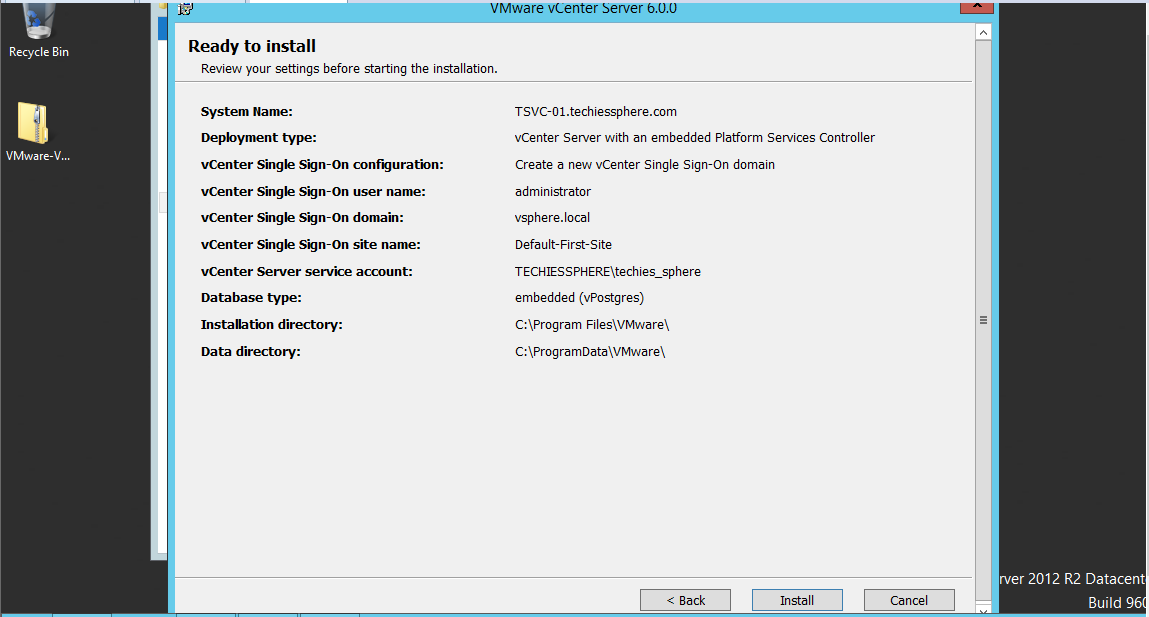
Click Next


Click Install


Wait for Installation to be completed……


Click Finish to close the installation Wizard


To verify of the installation is done correctly, you can use vSphere client to login to your vCenter Server..

For the first time login, you can use following details to connect your vCenter server:
IP/Host Name:  Your vCenter server IP
User Name:        administrator@vsphere.local
Password:           the password you gave while installation of vCenter server.

After successful logon, this is how it will look like..


Cheers, have a happy virtualization… Please write me back for any query or feedback….

Thursday, 5 January 2017

Migrating DNS Control Panel from Microsoft Office365 to Third Party DNS Service Provider.

Or, How to migrate DNS control panel from Microsoft Office365 to EasySpace or any third party DNS service provider?

Descriptions: We are planning to migrate our DNS control panel from Microsoft Office365 to EasySpace DNS/Domain service provider because of so many restrictions and limitations in Office365 DNS control panel. Technically, Its take 1-2 hrs approximately to copy all DNS records from Office365 DNS control panel to third party DNS control panel depending upon the number of DNS records you have in Office365 DNS control panel and overall migration activity can be completed within 3-4 hrs including global replications, but logically you should have at least 12-24 hrs of estimated downtime to get this activity completed successfully.

Some DNS provider even asks for 24-48 hrs of downtime for replicating DNS records globally. We will talk about all major steps we should be considering while/before migration of DNS control panel in detail.

Limitations in Office365 DNS Control Panel (I experienced):
1. You can't create multiple/additional MX record in Office365 DNS Control Panel.
2. Including multiple IP and domain keys in SPF record is not fully functional as its displays  duplicate entries sometime in SPF lookup.
3. You can't create sub-domain in Office365 DNS control panel.

Prerequisites:
1. Take backup of your existing DNS records from Office365 DNS control panel.
2. Check who is your Domain service provider and make sure you have admin access of the control       panel portal.
3. Check with your Third Party DNS Service provider for proper instructions, limitations and steps to
4. understand what all are the things you need to do at new DNS control panel before and after setting     up your NS records.
5. Record NS records entries of both DNS Service Providers (Office365 and Third Party).
6. Plan for a feasible downtime.

Sequence of tasks to be performed.
1. Pointing Name Server (NS) record to your domain service provider’s DNS control panel.
2. Performing migration steps on Office365 DNS Control Panel.
3. Creating and updating all DNS records on third party DNS control panel.
4. Verifying Services and functionalities.

Steps: Pointing Name Server (NS) record
As of now, my domain is being managed by Office365 DNS control panel, so the NS pointing is appearing like below:


Change the Name Server Pointing address to your domain provider’s Name Server. In my case, its appearing below:


Wait for NS record pointers to be updated. It may take up to 1-2 hrs or more... Remember, you have already taken 12 hrs of downtime in advance…. So, don’t be panic, wait till it updates.

My NS record has been updated well and now I am able to see “Launch DNS Tool” option.


Note:  Once your name server is pointed to new DNS control panel. You can proceed with below steps on Office365 Server to transfer all the DNS management responsibility from Office365 to third party control panel.

Steps: Performing migration steps on Office365 DNS Control Panel
Login to Office365 Admin Console with Administrative rights
Go to Domains > Manage Domains > Select the yourdomainname.com (default) > Click on Domain Settings


You can see here; DNS Management is appearing as ‘DNS Managed by Office365’.

Click on “Click Here” hyperlink when you are ready to start.


Select the option “No, I have an existing website or prefer to manage my own DNS records” > Click Next


Select all the service you want > Click Next


Now you will be able to see many of DNS records (MX, CNAME, A, TXT, SRV etc..) that to be added in your third party DNS control panel for proper functioning of Office365 server.


Steps: Creating all DNS records on third party DNS control panel
Now, Login to your third party DNS control panel console and Create all the records recommended by MS by default one by one carefully.

These records are mandatory to be created first in your third party DNS control panel to make sure proper functioning of your Office365 Server emails and other services.

In my case, I am logged in in EasySpace DNS control panel and created all the required records appearing in final page of Office365 server DNS records lists including MX, A, CANAME, SRV, TXT(SPF) etc…


Once you are done with creating all the records in your third party DNS control panel, save it and go back to Office365 DNS control panel.

Click on Verify button in bottom left corner > verifying process will be initiated as appearing below:


That’s it… You’re all set up. Once the verification is completed, click on Finish button to close this migration wizard.


Just to verify, if you will check the Domain Settings options again, it will show you that your DNS is now being managed outside Office365.


Cheers, please write me back if you have any query or feedback on this...